AI Artistic Mode
How style prompts work, plus ready-to-use examples.
How it works
Turn on AI Artistic in the Customize panel and you get two ways to supply the background art:
- Style prompt (text) — describe a look and Stable Diffusion generates a background image from it, purely for aesthetics. Your QR code is then composited on top by a separate, deterministic step, so it always stays scannable no matter how busy or colorful the art is.
- Reference image (upload) — skips AI generation entirely and uses your photo directly as the background, so the result looks exactly like what you uploaded. If you upload a reference image, any style prompt you've typed is ignored — the two options aren't combined.
Writing a good style prompt
- Name a clear style or medium first — "watercolor painting", "neon cyberpunk", "oil painting".
- Add 2-3 concrete details: colors, subject, mood ("warm golden light", "deep blues and purples").
- Keep it under ~40 words. Longer prompts get truncated by the model, and short, direct prompts tend to produce more coherent art anyway.
- You don't need to mention the QR code, contrast, or scannability at all — the compositing step handles that automatically.
Example prompts
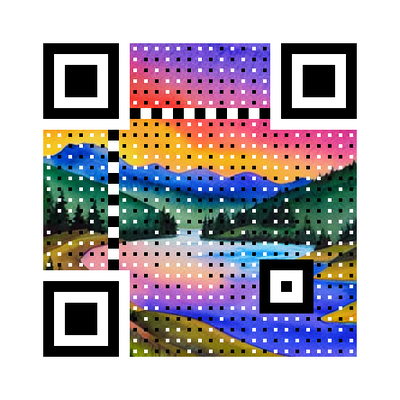
Watercolor landscape
“vibrant watercolor painting of a mountain lake at sunrise, soft pastel colors, flowing brushstrokes”
Try it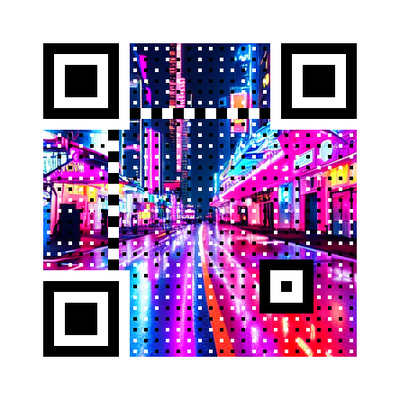
Neon cyberpunk
“neon cyberpunk cityscape at night, glowing pink and blue lights, rain-soaked streets, futuristic”
Try it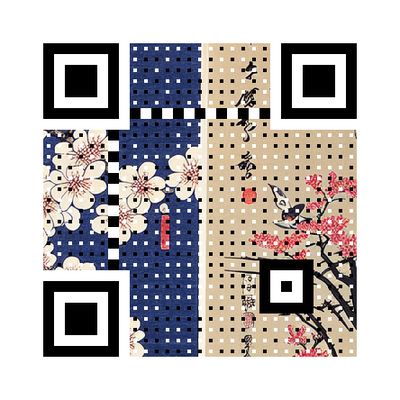
Japanese ukiyo-e
“traditional Japanese ukiyo-e woodblock print, cherry blossoms, Mount Fuji, muted indigo and cream tones”
Try it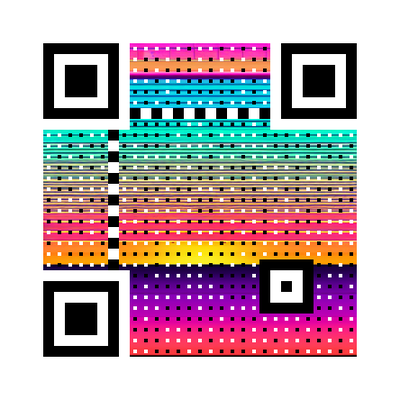
Retro synthwave
“retro synthwave sunset, grid horizon, purple and orange gradient sky, 80s aesthetic”
Try itUsing a reference image
Best when you want a specific, recognizable image to show through — a product photo, a personal photo, a logo. Upload it under "Reference image" in the Customize panel; no style prompt is needed. Very busy or high-contrast photos work fine — scannability doesn't depend on what's in the image.